Cleaning up Azure Storage Accounts
I wanted to put some structure around the experiments that I was doing on Microsoft Azure. I noticed that I had lots and lots of storage accounts created in the past. I used to create new virtual machines from UI and shut it down whenever I am done with the required purposes. Whenever it shows me that I ran out of quota on cores or cloud services, I used to delete the virtual machine and cloud services. However, since most of the time, I used the option to create a new storage account as part of virtual machine creation, there were lot of storage accounts left out.
How do I go about finding which ones are still used vs. which ones are not in use. I can go through the portal click through each of the storage accounts, go to containers tab and look if there are files inside containers. But I thought it will be fun to write a PowerShell script that can traverse all storage accounts, containers and list the files and their sizes. If I see a storage account with no files, or storage account with only a ‘vhd’ container with couple of .status files only, then they are good to be delete.
Script Downloads
Getting started with Microsoft Azure PowerShell
I will be writing a series of blogs around Microsoft Azure & Hybrid Cloud. As a quick start, wanted to write up on how to setup our machines with PowerShell to work with Microsoft Azure.
Setup machine with Microsoft Azure PowerShell
- If you haven’t installed Web Platform Installer, you can download and install it from http://www.microsoft.com/web/downloads/platform.aspx
- Download and install ‘Microsoft Azure PowerShell’ from Web Platform Installer. If you do not find that in ‘Spotlight’ you can perform a search for ‘Microsoft Azure PowerShell’
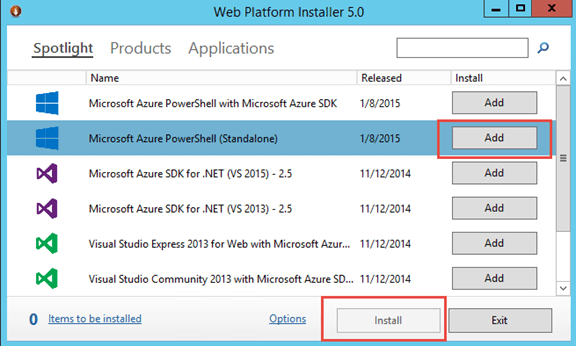
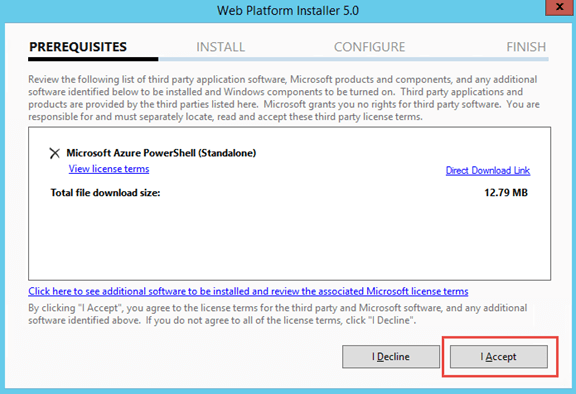
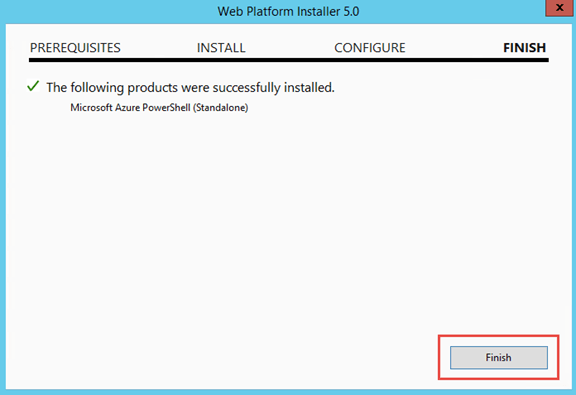
Set your default subscription and storage account
Download Azure Publish Settings file , configure default subscription and configure default storage account. There is a very good blog article from Michael Walsham explaining this step-by-step. I strongly recommend you read through that post. There is one minor change in Azure PowerShell cmdlet usage (based on a cmdlet update from Microsoft), from the post you see in the blog. I have written a PowerShell script with minor updates, which you can download from here.
Script Downloads
https://gist.github.com/Manesh-R/9ba344e08ebf7e6743a9
This file contains hidden or bidirectional Unicode text that may be interpreted or compiled differently than what appears below. To review, open the file in an editor that reveals hidden Unicode characters.
Learn more about bidirectional Unicode characters
| # Ref: https://manesh.me/2015/02/05/getting-started-with-microsoft-azure-powershell/ | |
| # Step 0: Define all variable values | |
| $publishSettingsFile = "C:\Users\Manesh\Documents\AzureSubscriptions.publishsettings"; | |
| $location = "West US"; | |
| $subscriptionName = "Visual Studio Premium with MSDN"; | |
| # Sometimes, you might have multiple MSDN subscriptions | |
| # If someone else add you as a co-admin on their MSDN subscription etc. | |
| # If so, choose the subscription Id option | |
| $subscriptionId = $null; | |
| # Sometimes, this account is created by someone else. | |
| # So if the script fails, you might want to change this. | |
| $storageAccountName = "manesh"; | |
| # Step 1: Import Azure Publish Settings File | |
| Import-AzurePublishSettingsFile $publishSettingsFile | |
| # Step 2: Set current subscription | |
| Get-AzureSubscription | |
| if ($subscriptionId -eq $null) { | |
| Select-AzureSubscription -SubscriptionName $subscriptionName -Current | |
| } else { | |
| Select-AzureSubscription -SubscriptionId $subscriptionId -Current | |
| } | |
| # Display only current subscription | |
| Get-AzureSubscription -Current | |
| # Step 3: Set current storage account | |
| $isStorageGood = $false; | |
| try { | |
| Get-AzureStorageAccount –StorageAccountName $storageAccountName -ErrorAction Stop | Out-Null | |
| if ((Get-AzureStorageAccount –StorageAccountName $storageAccountName).Location -eq $location) { | |
| $isStorageGood = $true; | |
| Write-Host "'$storageAccountName' storage account already exists, skipping creation" | |
| } else { | |
| Write-Host "'$storageAccountName' storage account already exists, but in a different location. Try another storage." | |
| } | |
| } | |
| catch { | |
| if (!(Test-AzureName -Storage $storageAccountName)) { | |
| Write-Host "Creating Storage Account $storageAccountName" | |
| New-AzureStorageAccount -StorageAccountName $storageAccountName -Location $location | |
| $isStorageGood = $true; | |
| } | |
| else { | |
| Write-Host "'$storageAccountName' storage account already exists and is owned by some other subscription. Try a different name." | |
| } | |
| } | |
| if ($isStorageGood) { | |
| if ($subscriptionId -eq $null) { | |
| Set-AzureSubscription -SubscriptionName $subscriptionName -CurrentStorageAccountName $storageAccountName | |
| } else { | |
| Set-AzureSubscription -SubscriptionId $subscriptionId -CurrentStorageAccountName $storageAccountName | |
| } | |
| # You should see the provided subscription and storage account name while executing following command | |
| Get-AzureSubscription -Current | |
| Write-Host "All is well" | |
| } else { | |
| Write-Host "Try a different storage account name and re-run the script" | |
| } |
.
Avoid Certificate Warning on Windows Azure Pack Development Environment
Often, we spin up virtual machines for development & testing purposes of Windows Azure Pack (as part of Team Access Control Resource Provider or other engagements). Typically we develop against an express deployment. One of the very time consuming process during development is to click on ‘continue to this website’ from the certificate validation error message while accessing admin portal & tenant portal. Since the portal automatically redirect to the authentication site, it also prompts for the same, which adds to the pain. 😦
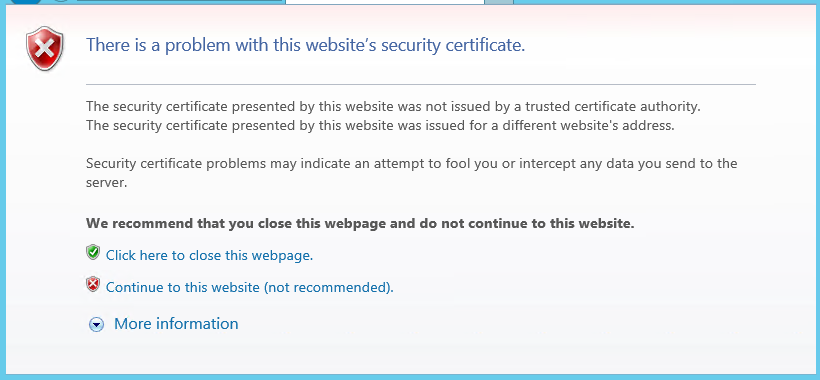
There are two issues with the self-signed certificate.
1. It is not trusted
2. The subject name do not match the website
I am providing how we fix this on our development environment. I suggest this to be only used for development / test environments.
Step 1: Create a self-signed certificate with subject name matching website
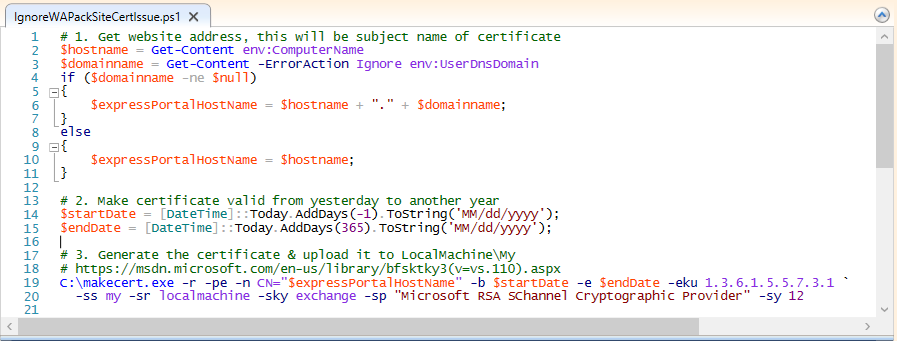
Step 2: Add the new certificate as a trusted certificate authority

Step 3: Update bindings for sites to use the generated certificate (MgmtSvc-AdminSite, MgmtSvc-AuthSite, MgmtSvc-TenantSite, MgmtSvc-WindowsAuthSite)

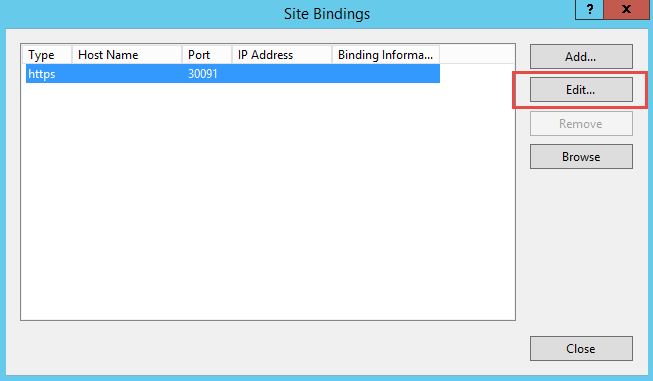
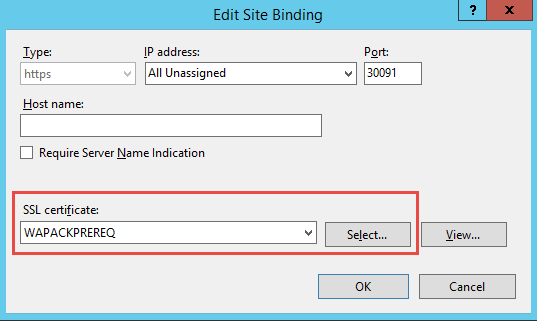
Step 4: Restart IIS & Browser
You can download the PowerShell script referred to in this blog post from here. Hope this helps in improving your productivity. 🙂
Server Roles and Features requirement for Windows Azure Pack
When we install express deployment using Web Platform Installer, it automatically configures all required Windows Server Roles & Features. However, in development environment where we want to build new WAPack virtual machine, it is always better to build the baseline image with all required roles and features.
You can find a reference server configuration file that I generated at Technet Gallery. You can use the following PowerShell scripts to configure server with the pre-requisites.
Using this approach brings down the configuration by Web PI from 53 components to 36 for WAPack UR4.
# If you want to generate the configuration based on an existing WAPack Server
# Get-WindowsFeature |
#       ? { $_.Installed -AND $_.SubFeatures.Count -eq 0 } |
#       Export-Clixml C:\WAPack_ServerRolesAndFeatures.xml

$serverFeatures = Import-Clixml C:\WAPack_ServerRolesAndFeatures.xml
foreach ($feature in $serverFeatures) { `
    Install-WindowsFeature -Name $feature.name `
}
You can find software requirements for Windows Azure Pack express deployment here.
Troubleshoot message flow for Windows Azure Pack
While developing WAP custom resource providers, I have seen myself and others running into the issue of getting 404, resource not found when developing a new API controller.
Typically if we have atleast one API call working against the custom RP, it means that custom resource provider registration is working fine and WAP framework is routing the messages correctly. It is most likely a mismatch between how API client construct the URL or how route configuration is done in Web API. Attaching debugger, doesn’t really help in this scenario, as ASP .NET is not able to find the route to the controller class (yea, that is why it is sending 404). So how do we find out how is the messages get routed.
First and foremost, we need to understand how messages are flowing. Below diagram shows how it will typically be routed in a development boxes (I have marked the default ports in there).
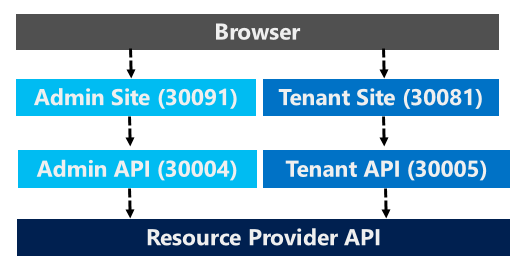
We can use Fiddler tool to capture the traffic and understand the exact messages that are going between various Sites. Since fiddler is a proxy tool, we need to enable proxy at the origin of the message. So if you are interested in finding the messages that Resource Provider API receive, you should set the proxy at Admin API or Tenant API, depending on what specific messages you are trying to look at.
This is what I have done on my test environment (Windows Server 2012 R2), to troubleshoot messages coming to the tenant endpoint on my custom RP.
- Logged on to server as Administrator
- Install Fiddler tool (I used the downloads from Telerik)
- Changed the Identity of ‘Tenant API’ application pool to Administrator
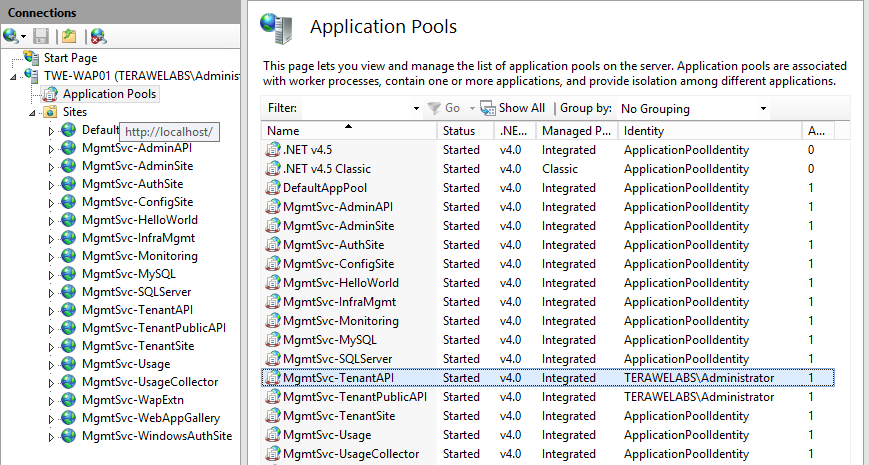
- Opened a new instance of IE and launched Fiddler from Tools > Fiddler
- Configure Fiddler to capture HTTPS traffic (Fiddler : Tools > Fiddler Options)
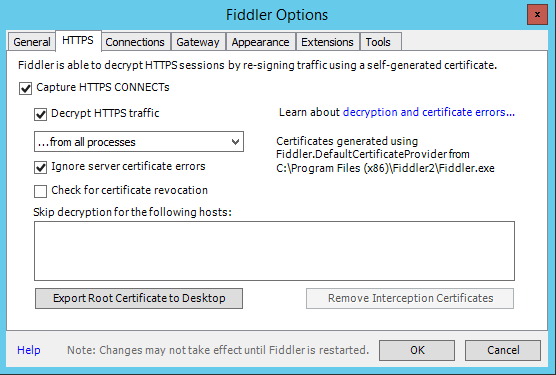
- Accept the Fiddler Proxy Certificate installation
- From IE, accessed tenant portal and invoked custom resource provider tabs
- Now, messages that goes from Tenant API to custom RP starts showing up in Fiddler.

Note: Fiddler captures all traffic that originate from browser as well. To filter the requests that shows up in Fiddler UI, you can update the ‘Rules’ in Fiddler (Rules > Customize Rules). I have used the following rule to see only the messages that land on my custom resource provider.
static function OnBeforeRequest(oSession: Session) {
if (oSession.host != “twe-wap01:30032”){
oSession[“ui-hide”] = “true”;
}
….
}
Thanks to Manish for helping me with the approach.
Add an existing VM to Windows Azure Pack Subscription
Typically, when we try to set the user role and owner to an existing virtual machine using PowerShell commands, we might get the following error.
Set-SCVirtualMachine: The specified owner is not a valid Active Directory Domain Services account.
Here are couple of blog posts explaining the theory and how to do it correctly.
- Working in VMM like Service Provider Foundation and Windows Azure Pack
- Adding an already running VM to a Windows Azure Pack Subscription
- Assigning Owner and User Role to VMs in Windows Azure Pack
This is a PowerShell script, you could directly use after fixing the variable names in the first section, as you need.
# Edit the following properties according to the environment
$vmmServerName = “sc01.terawelabs.com”;
$tenantName = “jdev@manesh.me”;
$tenantSubscription = “99a39f76-b938-4e75-b8e3-78a24f60add7”;
$vmName = “java-devops-03”;
# Connect to VMM Server
Get-SCVMMServer –ComputerName $vmmServerName – ForOnBehalfOf;
# Tenant user is expected to sign up in WAP Portal and added to a plan with VM Resources
# This will ensure that user role is created in SC, with required quota limits
$roleName = $tenantName + “_” + $tenantSubscription;
$role = Get-SCUserRole –Name $roleName;
Get-SCVirtualMachine –Name $vmName | Set-SCVirtualMachine –UserRole $role;
Get-SCVirtualMachine –Name $vmName | Set-SCVirtualMachine –Owner $tenantName –OnBehalfOfUserRole $role –OnBehalfOfUser $role;
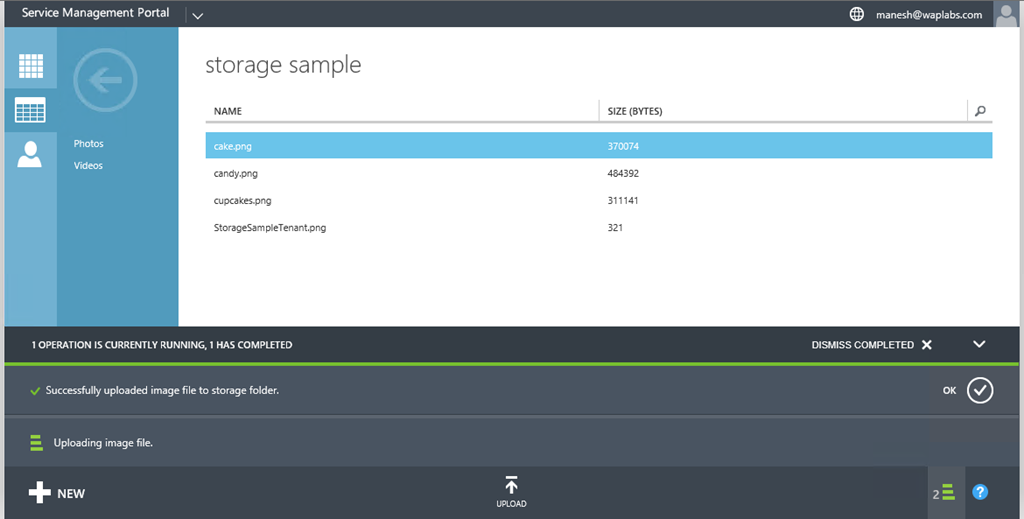
WAP Storage Sample – v0.2 – Enable tenant to upload files
Updated Git Project with changes for version 0.2. In this version following features are enabled.
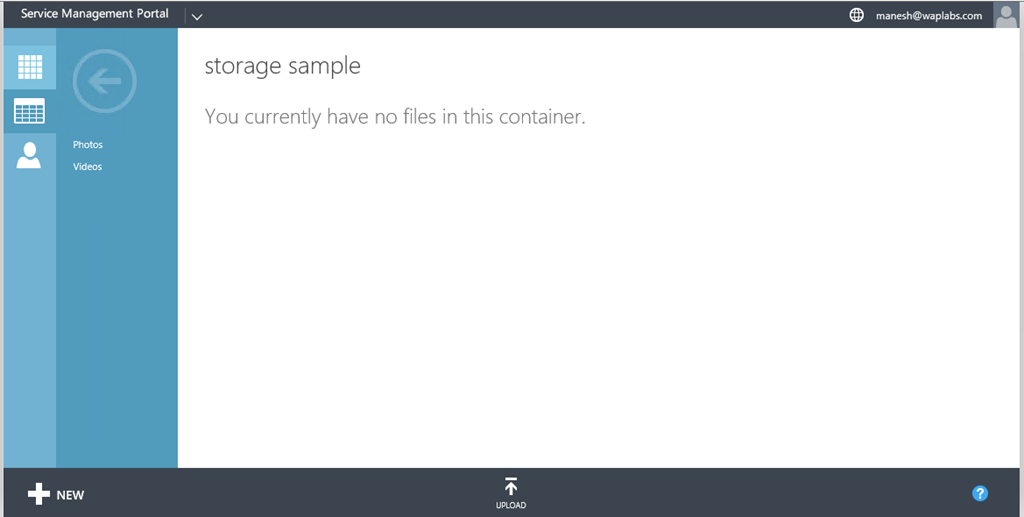
- Tenants can upload files to the containers they create
- Only small file uploads are supported (content is uploaded in a single API call).
- Demonstrates navigation into tab items
- Demonstrates upload of file using file upload control
If you have any questions on the code sample, need help with some specific scenarios, you can reach me through MSDN forum for WAP. I follow the forum almost daily.
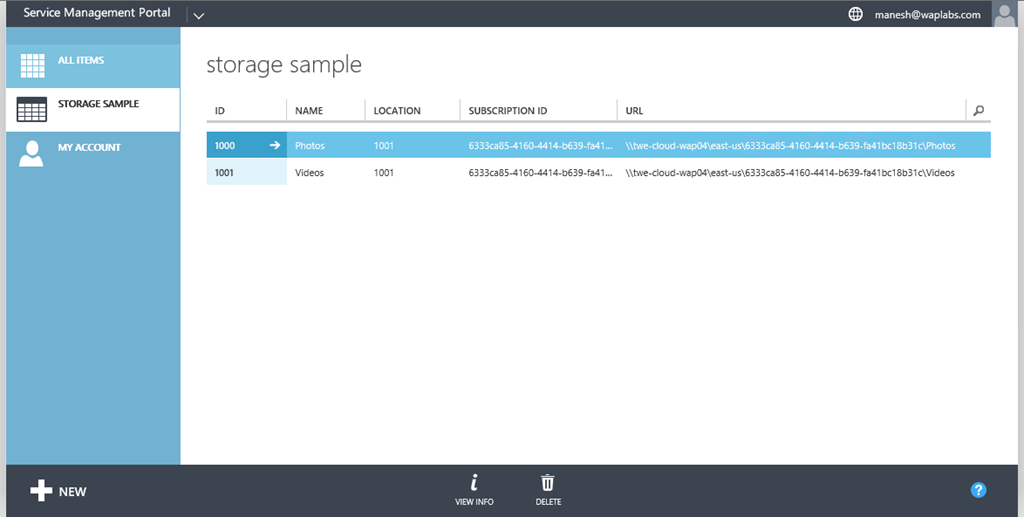
Here is the experience for Tenant for this update.

WAP Admin Extension Controller Not Loading
I was looking at an issue posted in the forum about not able to debug server controller for admin extension. Couldn’t really figure out what could be the root cause, as the controller should get loaded and return data (default expectation). Getting a 404, strange.
Looked at the issue over a remote session and we found the root cause of the issue from event log.
LogName: Microsoft-WindowsAzurePack-MgmtSvc-AdminSite/Operational Error:Unhandled exception: FileLoadException: Could not load file or assembly 'System.Web.Mvc, Version=5.2.0.0, Culture=neutral, PublicKeyToken=31bf3856ad364e35' or one of its dependencies. The located assembly's manifest definition does not match the assembly reference. (Exception from HRESULT: 0x80131040)
For some reason, the NuGet package on the development environment updated the project to MVC 5.2 and the WAP Admin site was not loading the extension DLL because of the failed dependency.
Thought others might also run into this issue (knowingly or unknowingly) . As a quick resolution, we rebuilt the admin extension against MVC 4.x libraries and it started working.
WAP Storage Sample – v0.1- Features
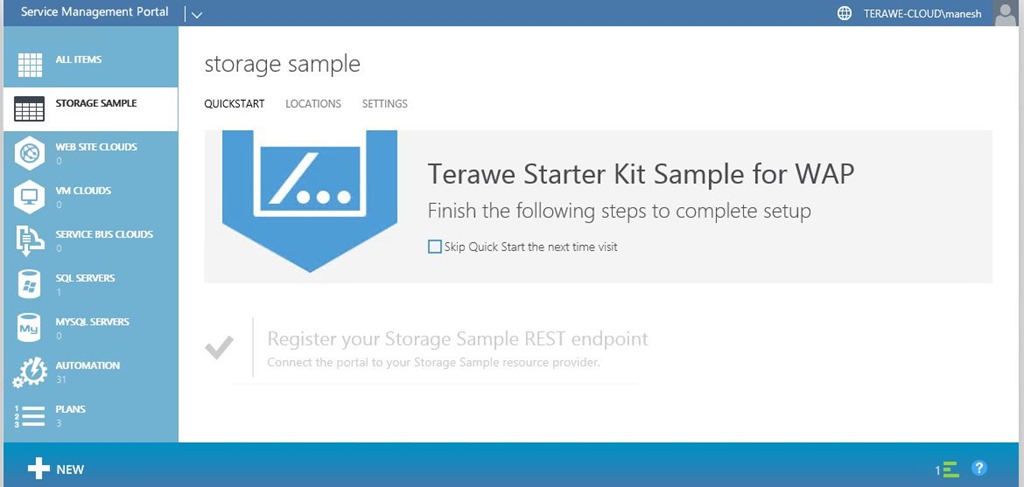
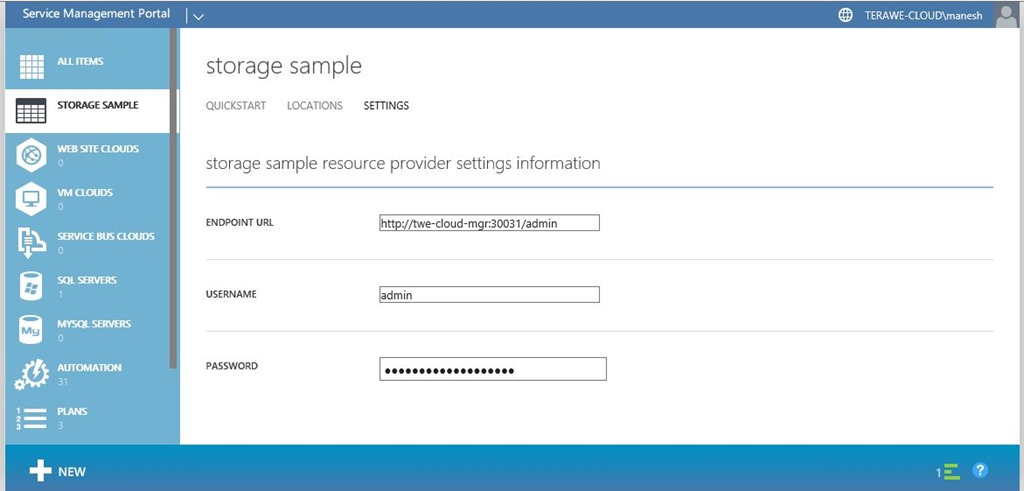
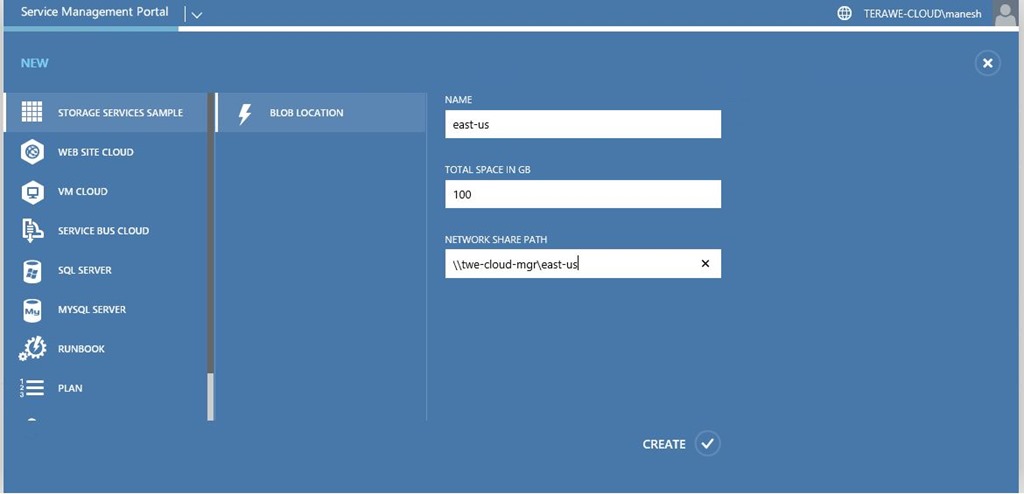
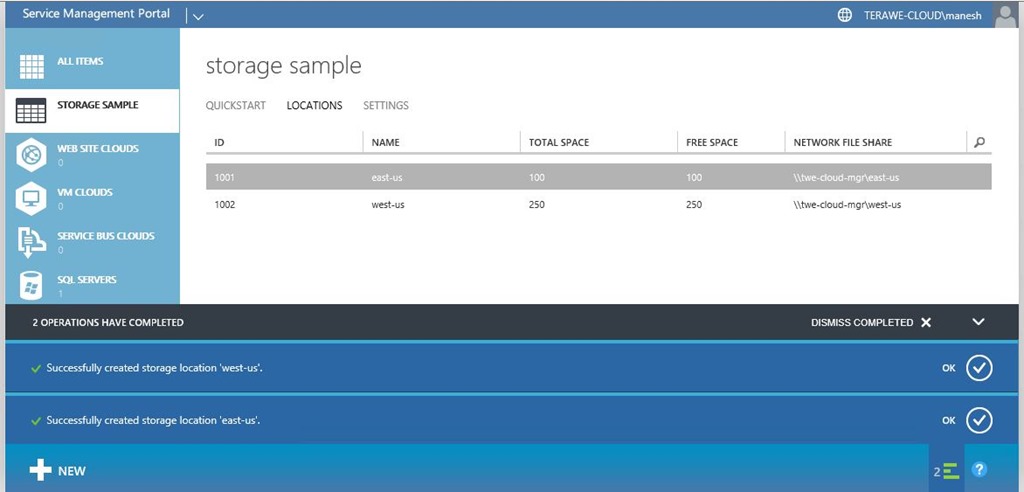
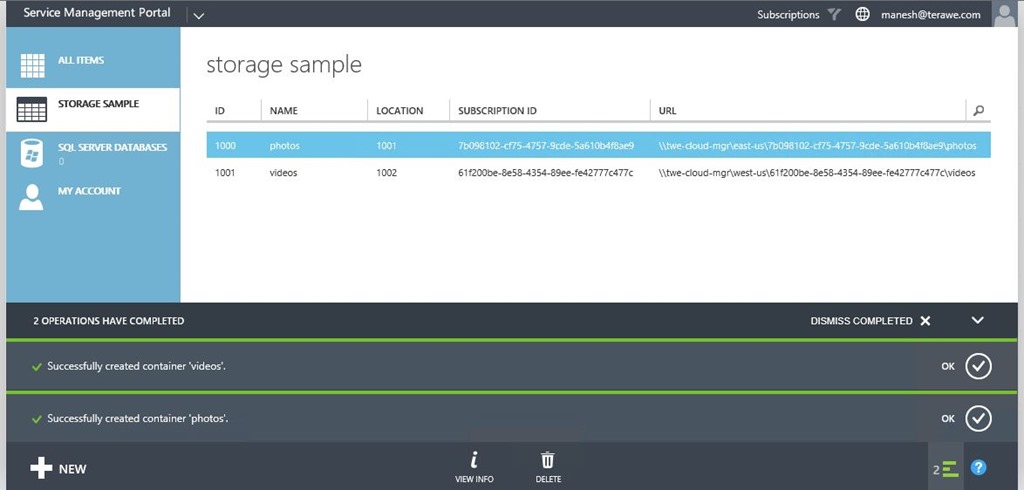
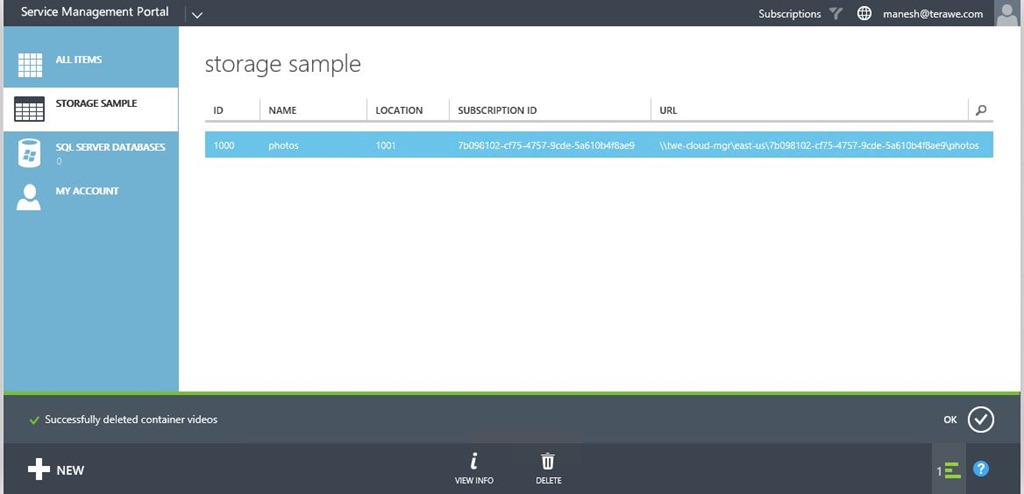
Made some good progress on the 0.1 version of storage sample. Except for some basic code clean up (which I am planning to take up along with v0.4), it is all good. You can browse / download the sample code from Git Project. Providing the screen captures, so that everyone can easily have an expectation on the feature set of v0.1.
If you have any questions on the code sample, need help with some specific scenarios, you can reach me through MSDN forum for WAP. I follow the forum almost daily.
If you would like to see what is coming next, check out this blog page.
Admin Experience
Tenant Experience



Windows Azure Pack Storage Sample
I was looking at various resource provider implementation (Hello World and other content script files with in the deployment) to understand various approaches, in addition to the resources available on MSDN. Now, I am in a good state to start the development of storage sample for Windows Azure Pack. I am thinking of following as the various features for the sample.
- 0.1 – Basic sample with minimal capabilities (with in-memory data provider)
- Admin should be able to create storage locations and map it to physical network location
- Tenant should be able to create containers with in specific locations
- Tenant should be able to delete container
- 0.2 – Tenant should be able to upload files to container
- Note: No plans to support folders with in a container
- 0.3 – WAP Drive
- A stand alone web application to interact directly with Tenant API and demonstrate a photo album
- 0.4 – Stabilize
- Clean up code, comments added as required.
- Refactor API library with clean web-api implementation
- 0.5 – Implement usage
- 0.6 – Implement quota
- 0.7 – Implement database data provider with updates to setup
- 0.8 – Implement custom PowerShell commands to enable tenant operations
Mostly I plan to get one minor version made available every week with v0.1 to be made available around 8/17/2014.
 Imagine - Experiment - Realize